Method 1: Presence of tagged parameter containing WMM in beacon
- Enter a display filter to only show frames for the desired SSID (NOTE: SSIDs are case sensitive)
- e.g. wlan.ssid == “VoiceReady”

2. Choose a frame that contains Beacon Frame in the “Info” column of the Packet List Pane. Alternatively, you can use Wireshark display filter wlan.fc.type_subtype == 8

3. Expand the IEEE 802.11 Wireless Management and Tagged parameters headers in the Packet Details Pane
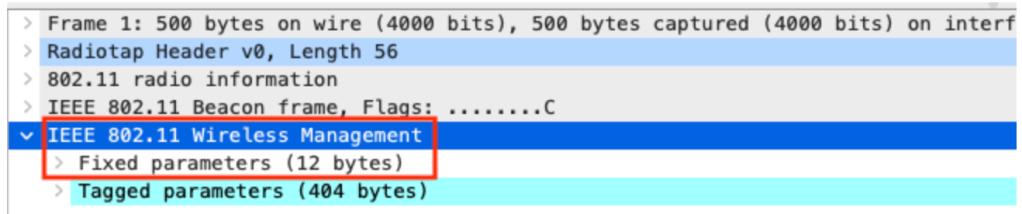
4. If there is a “Tagged parameter” containing WMM, then this WLAN has QoS enabled

5. Conversely, if there is not a Tagged parameter containing WMM, then this WLAN does not have QoS enabled

Method 2: Presence of MCS data rate support
Without QoS, MCS rates cannot be used
- Enter a display filter to only show frames for the desired SSID (NOTE: SSIDs are case sensitive)
- e.g. wlan.ssid == “VoiceReady”

2. Choose a frame that contains Beacon Frame in the Info column of the Packet List Pane
Alternatively, you can use Wireshark display filter wlan.fc.type_subtype == 8

Expand the IEEE 802.11 Wireless Management and Tagged parameters headers in the Packet Details Pane

3. If there is a Tagged parameter containing HT Capabilities, then this WLAN does have QoS enabled

4. Conversely, If there is no Tagged parameter containing HT Capabilities then this WLAN does not have QoS enabled

Method 3: 802.11 Frame Type (NOTE: requires active client connections to WLAN)
- Enter a display filter to only show frames for the desired SSID
e.g. wlan.ssid == “VoiceReady”
2. Scroll through frames in the Packet List Pane until you see either Data or QoS Data in the Info column
3. If QoS Data is present then this WLAN does have QoS enabled.
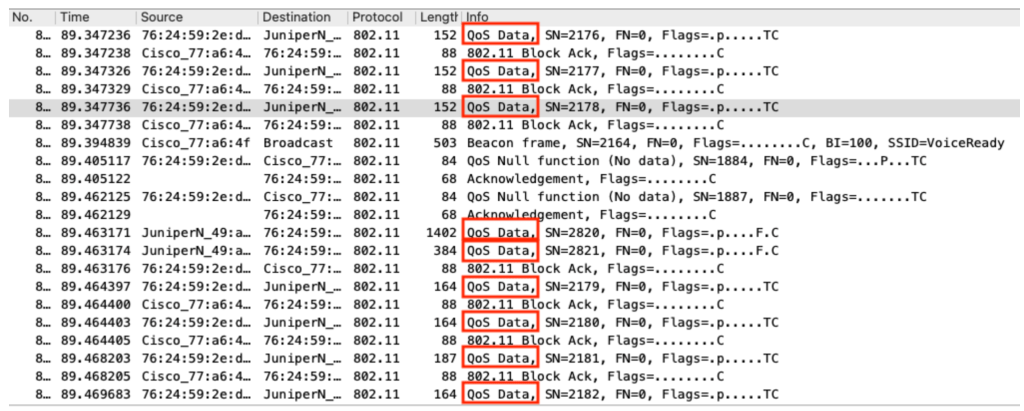
4. If Data is present then this WLAN does not have QoS enabled.

 The Information Element